
Introduction
Computers play a central role in work, education, and everyday digital activities. Over time, however, even high-quality systems can experience slow performance, software errors, or hardware issues if they are not maintained properly.
Regular computer maintenance helps keep systems running smoothly and extends their lifespan. By following a few essential practices, users can prevent technical problems, improve performance, and reduce the risk of hardware failure.
Understanding proper computer care is important for both personal and professional environments where reliable systems are essential.
Keep Your Operating System Updated
Operating system updates are essential for maintaining security and performance. Software developers frequently release updates that include bug fixes, performance improvements, and security patches.
Keeping your system updated helps:
- Protect against security vulnerabilities
- Improve system stability
- Ensure compatibility with modern applications
- Enhance overall performance
Enabling automatic updates can ensure that the system receives important improvements without manual effort.
Clean Your Computer Regularly
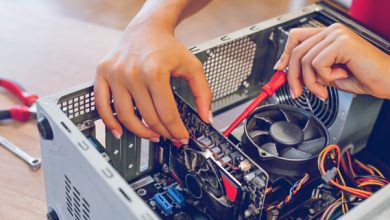
Dust and debris can accumulate inside computers over time, especially in desktops and laptops with cooling fans. Excess dust can block airflow and cause overheating, which may reduce performance or damage hardware components.
To maintain proper airflow:
- Clean the keyboard and screen regularly
- Remove dust from air vents and fans
- Keep the computer in a clean environment
- Avoid blocking ventilation areas
Regular cleaning helps prevent overheating and ensures that the computer operates efficiently for longer periods.
Manage Storage Space
Storage space plays a major role in system performance. When a computer’s storage becomes nearly full, it may slow down significantly.
Users can improve storage efficiency by:
- Removing unnecessary files and programs
- Clearing temporary files and downloads
- Organizing documents into folders
- Using external or cloud storage when needed
Maintaining adequate storage space allows the operating system to run processes smoothly and avoid slowdowns.
Use Reliable Antivirus Protection
Malware and viruses can severely impact computer performance and compromise sensitive data. Installing reliable antivirus software helps protect systems from harmful programs.
Important security practices include:
- Running regular antivirus scans
- Keeping antivirus definitions updated
- Avoiding suspicious downloads and links
- Using secure websites and trusted software sources
Strong security protection ensures that the computer remains safe from malicious threats.
Limit Startup Programs
Many applications automatically launch when a computer starts. Too many startup programs can slow down the boot process and consume system resources.
To improve startup speed:
- Disable unnecessary startup programs
- Keep only essential applications active at startup
- Review startup settings periodically
Reducing startup applications helps the computer start faster and run more efficiently.
Perform Regular Software Cleanup
Unused software can consume storage space and system resources. Over time, computers may accumulate applications that are rarely used.
Regular cleanup includes:
- Uninstalling unused programs
- Removing outdated applications
- Updating essential software tools
Maintaining a streamlined software environment helps the system operate more efficiently and avoid conflicts.
Monitor Hardware Health
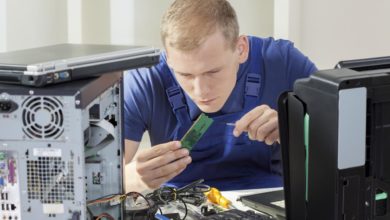
Hardware components such as hard drives, memory, and cooling systems require periodic monitoring to ensure proper functioning.
Important hardware checks include:
- Monitoring system temperatures
- Checking hard drive health
- Ensuring cooling fans are functioning correctly
- Upgrading memory or storage if necessary
Regular monitoring helps detect potential issues before they lead to serious hardware failures.
Restart Your Computer Periodically
Leaving a computer running continuously for long periods may cause memory usage to accumulate and slow down performance.
Restarting the computer occasionally helps:
- Clear temporary system processes
- Refresh system memory
- Apply pending updates
A simple restart can often resolve minor performance issues and improve responsiveness.
Back Up Important Data
Data loss can occur due to hardware failure, accidental deletion, or cyber threats. Regular backups protect important files and documents.
Common backup methods include:
- External hard drives
- Cloud storage services
- Automated backup systems
Maintaining backups ensures that important information can be restored quickly if problems occur.
Conclusion
Regular computer maintenance is essential for maintaining long-term system performance and reliability. Simple practices such as updating software, cleaning hardware components, managing storage, and monitoring security can significantly extend the lifespan of a computer.
By adopting consistent maintenance habits, users can prevent common issues, improve efficiency, and ensure that their systems continue to perform effectively for years to come.
FAQ: Top Computer Maintenance Tips for Long-Term Performance
1. How often should I perform computer maintenance?
Basic maintenance tasks such as cleaning files and updating software should be performed at least once a month, while hardware cleaning may be needed every few months.
2. Why does my computer slow down over time?
Computers may slow down due to accumulated files, background applications, outdated software, or insufficient storage space.
3. Is it necessary to restart a computer regularly?
Yes. Restarting helps clear temporary processes and refresh system memory, which can improve overall performance.
4. Can antivirus software improve computer performance?
Antivirus software mainly protects against threats, but removing malware can prevent system slowdowns caused by malicious programs.
5. What is the best way to clean a computer physically?
Use soft brushes, compressed air, and microfiber cloths to remove dust from vents, keyboards, and internal components safely.
6. Should I upgrade hardware to improve performance?
Upgrading components such as RAM or storage drives can significantly improve performance if the current hardware is outdated.
7. Why is data backup important for computer maintenance?
Backups protect important files from hardware failures, accidental deletion, or cyber attacks, ensuring that data can be recovered when needed.